Last reviewed: 17 September 2026
WW0 Game Download, Launch and Loading Guide
Choose the app or browser route for a WW0 title, then isolate loading trouble by checking the network, free storage, temporary data and phone resources in order.
Game access options
Treat app installation and loading a game as separate tasks
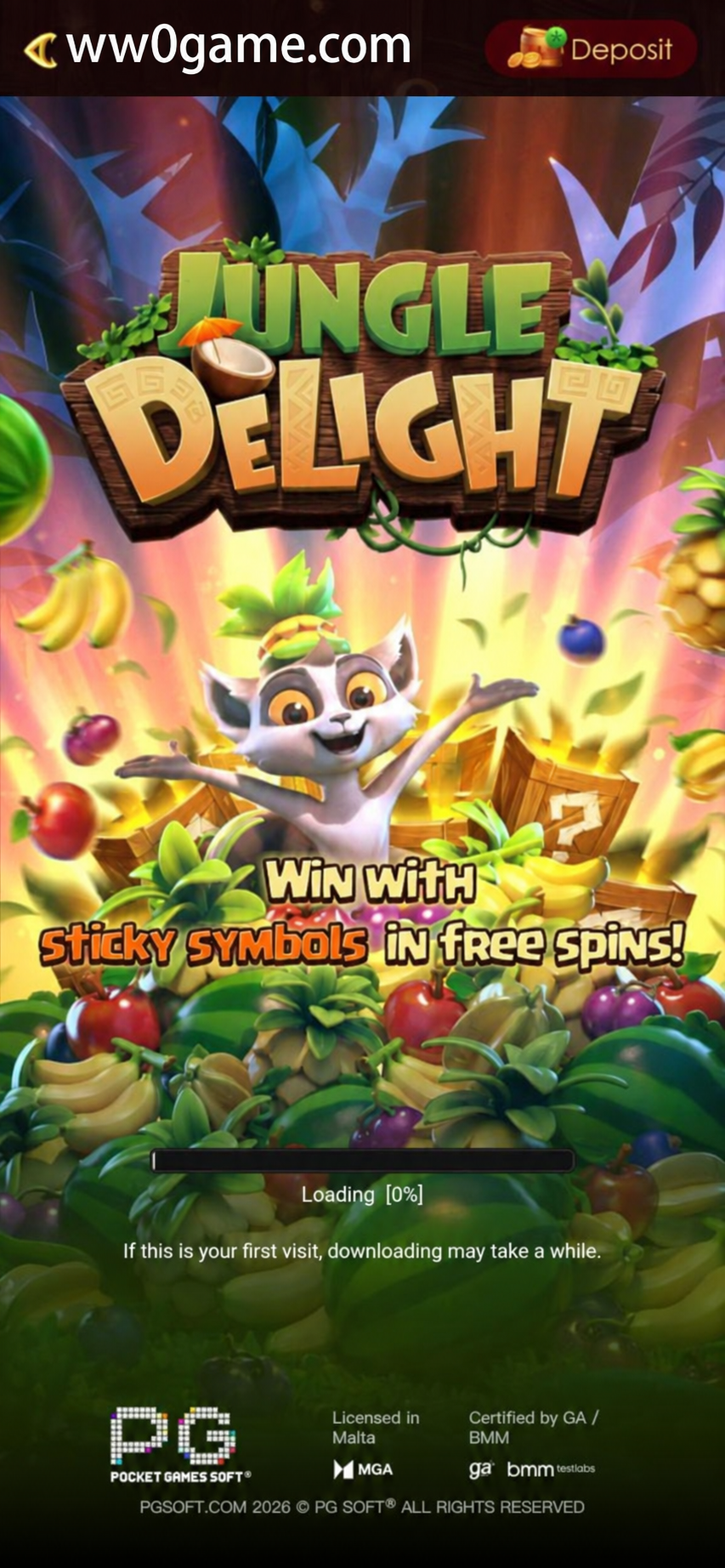
“Game download” may refer to app installation, opening a title or waiting for game assets to load. This page deals with opening games and resolving loading problems once setup is complete.
Use the APK guide when Android setup has not been completed. If the app opens but a title does not load, check phone performance, cached data and the network instead.
- Launch the app or supported browser version
- Make sure the account is signed in before choosing a game
- Select one title and let it load fully before doing anything else
- Stay on the same network while the game is loading
App versus browser
Compare access to games through the browser and app
The browser can be useful for a quick check, while the app may offer more consistent navigation. Pick according to the device, connection and account flow, and test both paths before assuming the service is unavailable.
If the browser works but the app is slow, clear only the relevant browser data and use a steady connection. For app access, keep the version current and leave adequate available storage.
Performance and connection
Confirm phone and network conditions before blaming a game
Low memory, restrictive battery saving or a network change may disrupt the first game load. Such delays are especially common when the mobile network is busy.
Run one controlled test: restart the app, open a single game, remain on one network and let the loading page finish. If only that title keeps failing, give support its exact name and the time of the error.
- Shut down heavy apps running in the background
- Leave enough available storage for loading and updates
- Turn off restrictive battery saving while a game is open
- Tell support the exact game name and error instead of saying only that it failed
More controlled sessions
Use clear session limits and deliberate controls
Decide the session duration and money limit before a game opens. Planning both in advance also reduces hurried taps, repeated reloads and confusion around wallet or offer labels.
If a wallet or profile screen freezes, wait for a response before pressing again. Repeated taps during lag make it unclear which action was recorded.
Visual walkthrough
WW0 Game Access and Loading Screen Examples
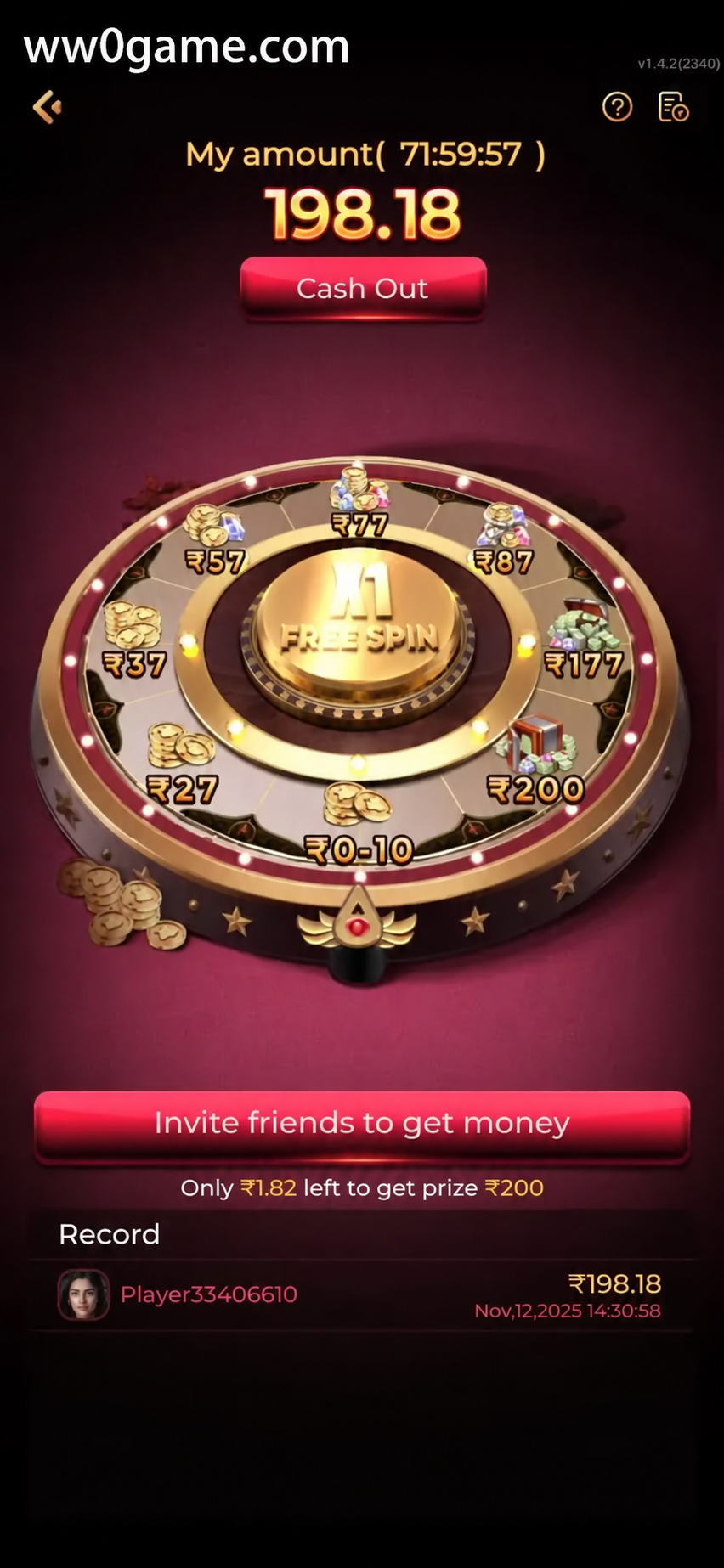
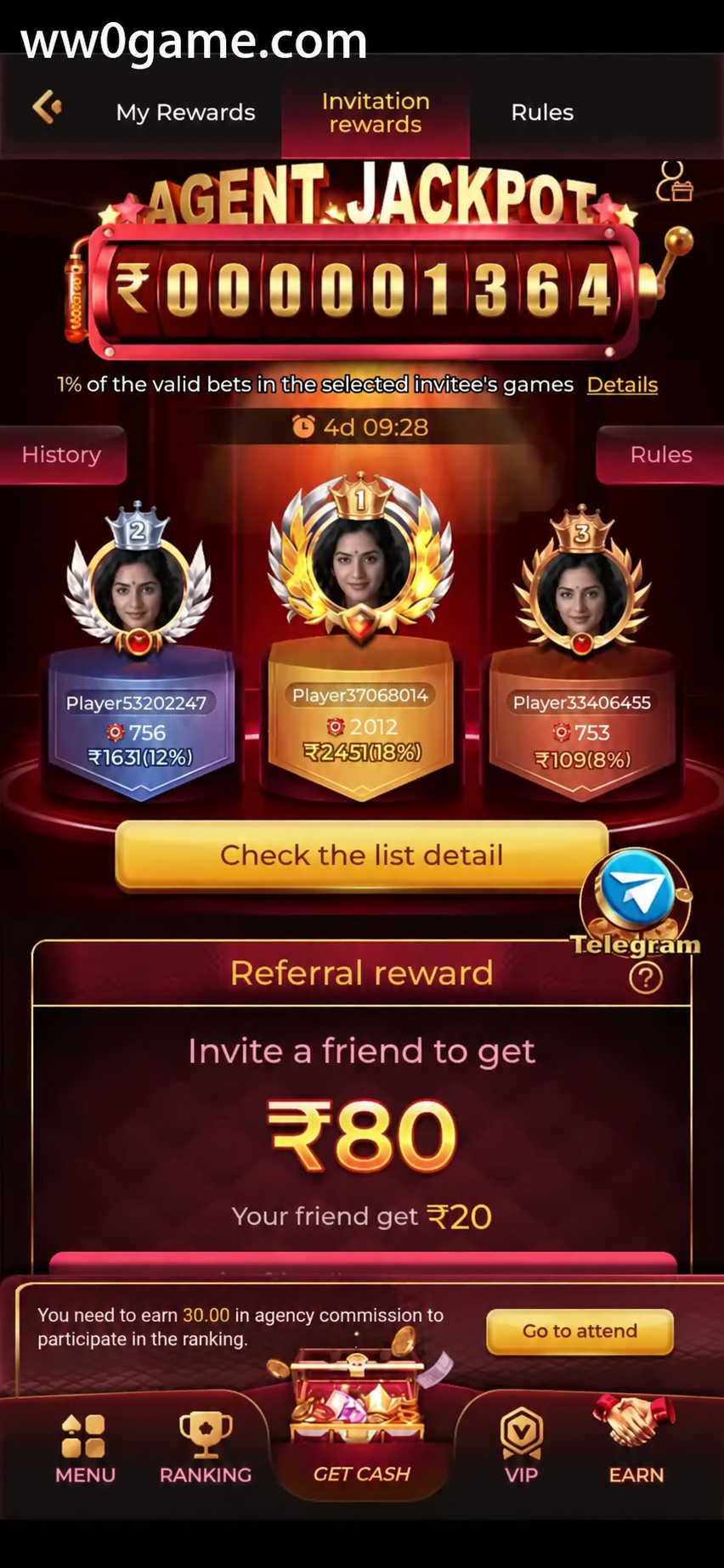
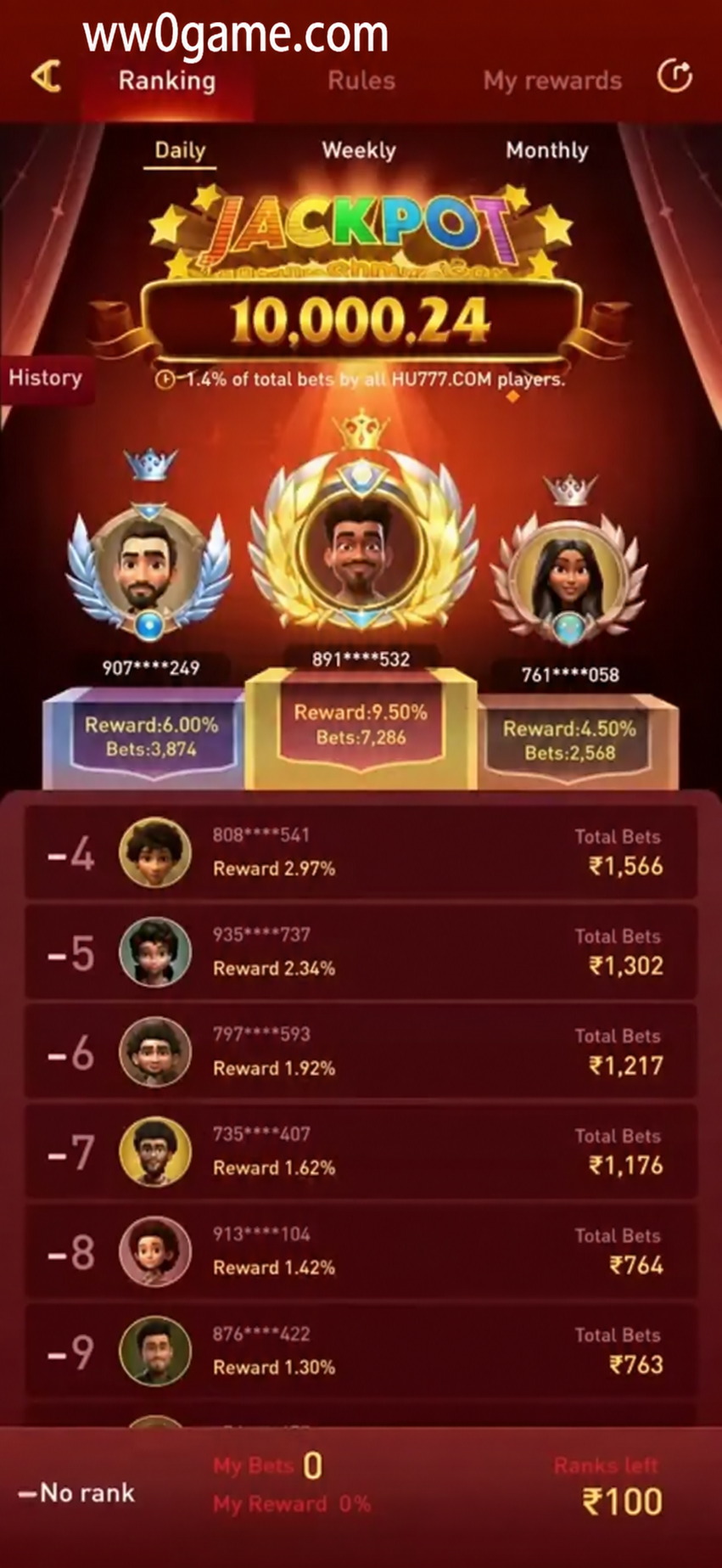
Use these game launch troubleshooting images to recognise page areas, then follow the current labels and prompts shown on your own device because layouts can change.
Recommended next steps
Continue after reviewing game launch troubleshooting
See sign-in recovery steps
From this game launch troubleshooting page, use the login checklist to separate mobile-number, OTP, password, session and recovery issues.
Open the Android setup guide
From this game launch troubleshooting page, use the Android checklist to verify the source, storage, compatibility and temporary install access.
Game section overview
From this game launch troubleshooting page, use the game guide to compare rules, controls, connection needs and session pace before choosing.
Useful questions
Questions about game launch troubleshooting
How does installing the APK differ from opening a game?
The APK download installs the Android application. Game access begins later, when an individual title opens and loads through the ready app or browser.
What commonly causes slow game loading?
A weak signal, low storage, aggressive battery saving, old temporary app data or changing networks during loading can all cause delays.
Can WW0 games run in a phone browser?
Browser access can be available, although performance may differ from the app according to the phone, connection and account status.
What should I prepare before launching a game?
Stay on a steady connection, close heavy background apps, confirm that sign-in works and read the title's controls before you begin.